n8n has its own nodes for the Integration Hub: a trigger that starts a workflow when the store sends an event, and an action node for orders, shipments, stock and prices.
1. Install the nodes
In n8n, open Settings → Community nodes → Install, enter n8n-nodes-cartenvo, tick the box, and click
Install.
On n8n Cloud, community nodes can be installed only once n8n has verified them. Until then, use the built-in nodes at the end of this guide.
2. Add the store as a credential
- In the store's admin, open Configuration → Integration Hub → API keys → Add key. Name it "n8n" and tick:
webhooks:manage, for the trigger;orders:readandorders:write, for the order actions;stock:writeandprices:write, if you'll set stock or prices.
- Save, and copy the key. It's shown only once.
- In n8n, add a Cartenvo Integration Hub API credential with the store's address (
https://shop.example.com) and the key. n8n checks it when you save.
3. Paid order → Google Sheets row
Add the Cartenvo Integration Hub Trigger node. Choose the credential, and pick
order.paidunder Event Names or IDs. The list comes from your store, including events other plugins add.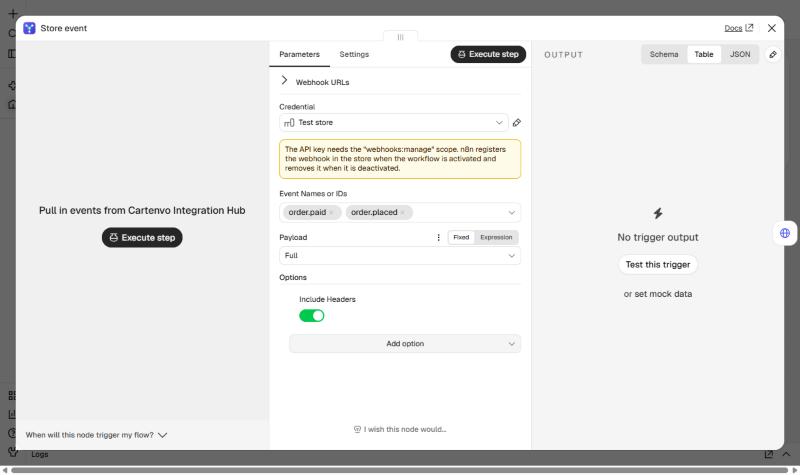
Add Google Sheets → Append Row in Sheet, choose the spreadsheet, and map the columns:
Column Value Order {{ $json.data.number }}Date {{ $json.data.createdOnUtc }}Customer {{ $json.data.customer.firstName }} {{ $json.data.customer.lastName }}Email {{ $json.data.customer.email }}Total {{ $json.data.totals.total }}Items {{ $json.data.items.map(i => i.quantity + ' x ' + i.sku).join(', ') }}Publish the workflow. n8n registers the webhook in the store: you'll see "n8n: (workflow name)" under Webhooks in admin, marked "Registered through the API". Unpublishing removes it.
To try it before a real order comes in, click Listen for test event in the trigger, then in the store's admin open
Preview, choose order.paid, an order and the n8n webhook, and click Send to this webhook.
Ready-made: import
new-order-to-google-sheets.json
(Workflows → Import from file).
4. New order → Slack message
Use the same trigger with order.placed, then Slack → Send a message with:
New order {{ $json.data.number }}: {{ $json.data.totals.total }} {{ $json.data.currency }}
from {{ $json.data.customer.firstName }} {{ $json.data.customer.lastName }}. {{ $json.data.adminUrl }}
Ready-made: new-order-to-slack.json.
5. Send changes back to the store
The Cartenvo Integration Hub node has 6 actions:
| Resource | Operation | Scope |
|---|---|---|
| Order | Get, Get Many | orders:read |
| Order | Update Status, Add Shipment | orders:write |
| Product | Update Stock | stock:write |
| Product | Update Price | prices:write |
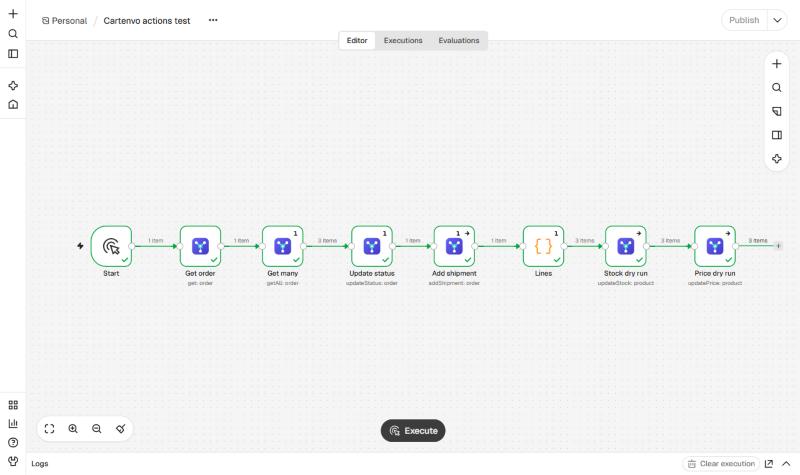
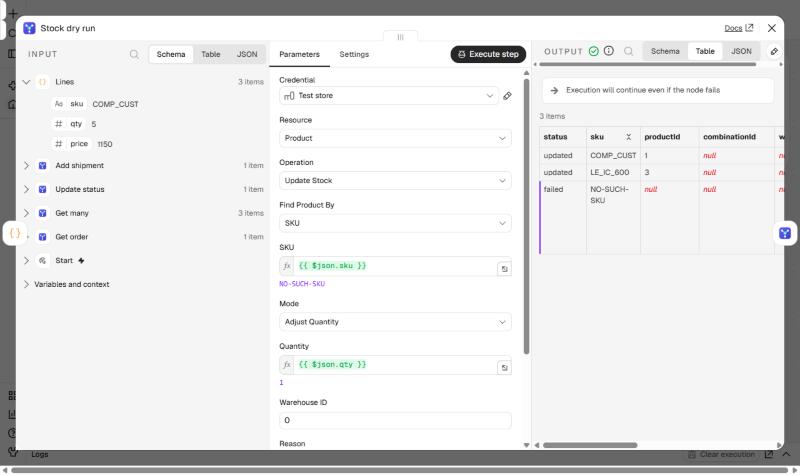
Stock and prices are sent in bulk: every input item is one line, and up to 1,000 lines go in one call. Turn on Dry Run first to see what would change. Each output item says what happened to its line, and with On Error: Continue (in the node's settings) a bad SKU fails only its own line:
Ready-made: stock-from-google-sheets.json
reads SKU and quantity from a sheet every hour and sets stock in one call.
Things to know
- The store must be able to reach n8n. An n8n on
localhostor a private address only works when the store's Settings → Block private networks is off, which is for testing only. - Retries are safe. The action node sends an idempotency key, so n8n's Retry On Fail never applies a change twice.
- Repeats: the store retries a delivery that fails or times out. Turn on Include Headers in the trigger and
use
delivery.eventIdto skip an event you've already handled.
Without the Cartenvo nodes
On n8n Cloud before the nodes are verified, or if you'd rather not install them:
- To receive events: add a Webhook node (POST), copy its production URL, and add it in the store's admin under
Webhooks → Add webhook. The fields are the same (
body.data.numberand so on). The Webhook node doesn't check the signature; add a Code node if you need to (how to check). - To call the store: an HTTP Request node with Generic Credential Type → Bearer Auth holding the API key,
and the URL
https://shop.example.com/api/cartenvo/v1/...from the API guide.