On this page
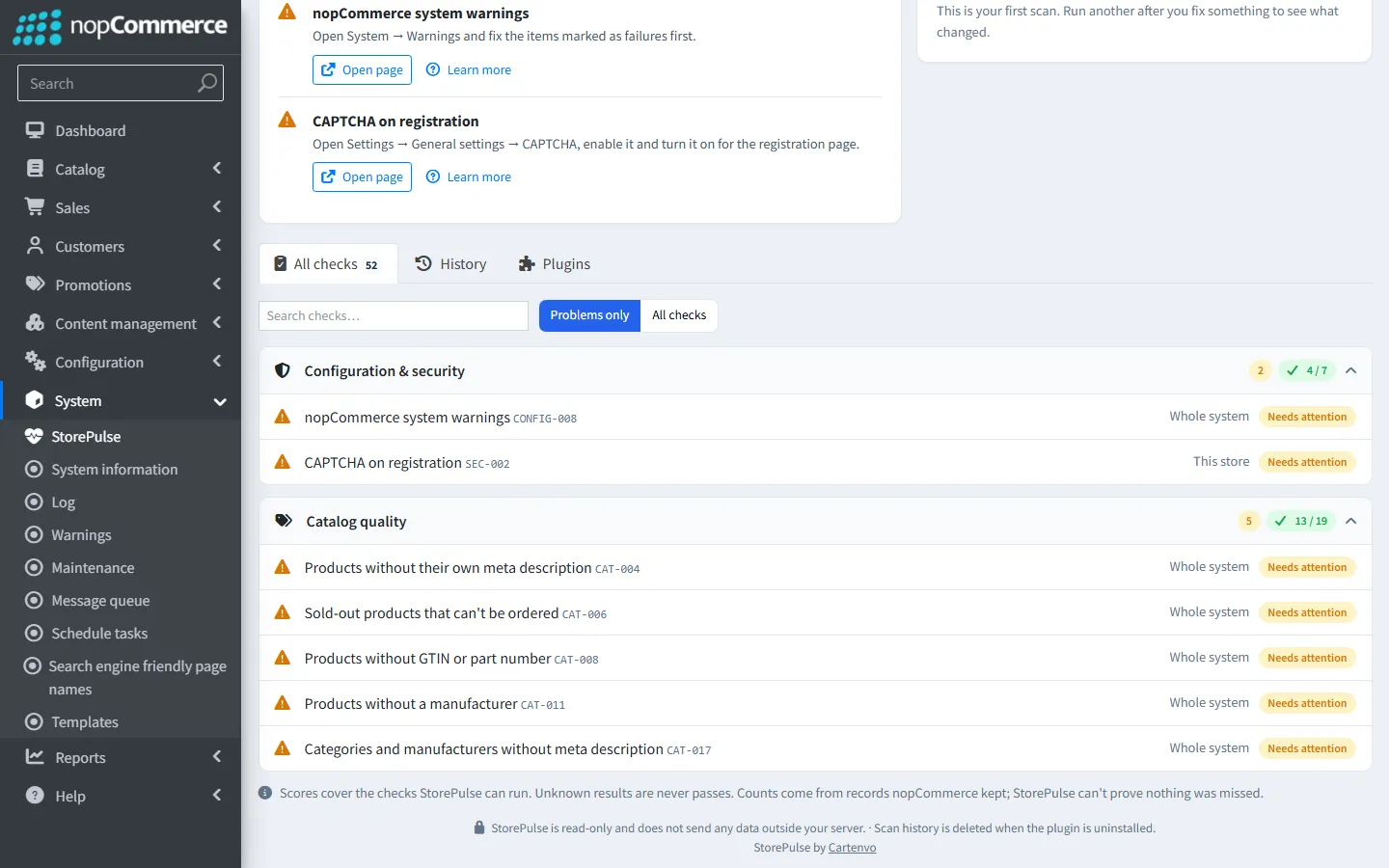
Catalog gaps cost sales and search traffic, but they are hard to spot one product at a time. StorePulse looks at published products that are visible on their own (not hidden child products of a grouped product), counts each kind of problem and, when you ask, lists the first 50 products, categories, manufacturers or reviews behind it with links to edit them. Catalog quality has a separate score, so it never lowers the main health score. All 19 checks use fields that are the same in nopCommerce 4.80, 4.90 and 5.00.
nopCommerce 5.00 admin
Products without images
StorePulse check CAT-001
What StorePulse checks
Published, individually visible products that have no picture.
Why it matters
Products without photos convert worse, look unfinished in category pages and can’t be listed in Google Shopping, which requires an image.
Common causes
- Imports without pictures, or pictures deleted when a supplier feed changed.
How to fix it
- Open the product in Catalog → Products and add pictures in the Pictures section.
- For many products, import pictures in bulk with the product import.
Products without SKU
StorePulse check CAT-002
What StorePulse checks
Published, individually visible simple products with an empty SKU.
Why it matters
Imports, stock updates, ERP and marketplace integrations match products by SKU. A product without one can’t be matched, so its stock and price stop updating.
Common causes
- Products created by hand without filling in the SKU.
- An import file with an empty SKU column.
How to fix it
- Click “Show affected items” in StorePulse to see the products.
- Open each product and enter a SKU in the Product info section.
- If your store doesn’t use SKUs at all, turn this check off in StorePulse → Settings.
Duplicate SKUs
StorePulse check CAT-003
What StorePulse checks
SKUs used by more than one product that isn’t deleted.
Why it matters
Imports, stock updates and ERP integrations match products by SKU. Duplicates make them update the wrong product.
Common causes
- Products copied without changing the SKU, or an import that created duplicates.
How to fix it
- Click “Show affected items” in StorePulse, or search Catalog → Products by the SKU.
- Give each product its own SKU, or delete the duplicate.
- Check any integration that matches by SKU afterwards.
Products without their own meta description
StorePulse check CAT-004
What StorePulse checks
Published, individually visible products whose page falls back to the store’s default meta description: the product’s meta description is empty, and either “Generate product meta description” is off in SEO settings or the short description is empty too.
Why it matters
nopCommerce uses the store’s default description for these pages, so many products show the same text in search results. Search engines then often write their own snippet, which is rarely the one you want.
Common causes
- Products created quickly or imported without SEO fields.
- “Generate product meta description” turned off in Configuration → Settings → General settings → SEO settings.
How to fix it
- Open the product and go to the SEO section.
- Write about 150 characters that describe the product and why to buy it.
- Or turn on “Generate product meta description” and give products a short description, which nopCommerce then uses.
- Start with best sellers and products that get search traffic.
Products priced at 0
StorePulse check CAT-005
What StorePulse checks
Published simple products with a price of 0 where neither “Call for price” nor “Customer enters price” is on.
Why it matters
Customers can order them for free, usually by mistake.
Common causes
- A price missed during setup or import.
How to fix it
- Open each product and set the price.
- If 0 is intended, use “Call for price” or “Customer enters price”, or leave it and note why.
Sold-out products that can’t be ordered
StorePulse check CAT-006
What StorePulse checks
Published, individually visible products set to “Track inventory” in one warehouse, with stock at 0 or below and backorders not allowed.
Why it matters
Customers find these products in categories and search results, but the page says out of stock and the buy button is gone. That wastes the visit and, if it lasts, the search ranking.
Common causes
- Stock ran out and nobody restocked or unpublished the product.
- “Low stock activity” left at “Nothing”, so nopCommerce keeps sold-out products published.
How to fix it
- Restock the products, or allow backorders in the Inventory section if you can still deliver.
- Set “Low stock activity” to “Unpublish” so products that sell out are hidden automatically.
- For products that are gone for good, unpublish them and redirect the URL to a similar product or the category.
Products without a category
StorePulse check CAT-007
What StorePulse checks
Published, individually visible products that aren’t in any category.
Why it matters
Customers browsing categories can’t find them, and search engines may not either.
Common causes
- Imports without category mappings, or a deleted category.
How to fix it
- Open the product and assign at least one category.
Products without GTIN or part number
StorePulse check CAT-008
What StorePulse checks
Published, individually visible simple products with both the GTIN and the manufacturer part number empty.
Why it matters
Google Shopping and most product feeds need a GTIN (the barcode number: EAN, UPC or ISBN) or a manufacturer part number for branded products. Without one, products are limited or rejected, and they can’t be matched to the same product sold elsewhere.
Common causes
- Supplier data imported without barcodes.
- Products made by the store itself, which have no GTIN.
How to fix it
- Get the GTINs from your supplier or the product packaging.
- Enter the GTIN or manufacturer part number in the product’s Product info section, or add them in bulk with the product import.
- If you don’t use product feeds, turn this check off in StorePulse → Settings.
Duplicate page URLs
StorePulse check CAT-009
What StorePulse checks
Active URL names (slugs) used more than once in the same language, across products, categories, manufacturers and other pages.
Why it matters
Only one page can be reached at a URL. The other is effectively hidden from customers and search engines.
Common causes
- Copied or imported items with the same name, or URL names typed by hand.
How to fix it
- Click “Show affected items” in StorePulse, or search for the URL name in System → Search engine friendly page names.
- Change the search engine friendly page name in the SEO section so each one is unique.
- If the old URL was already indexed, add a redirect.
Products without a description
StorePulse check CAT-010
What StorePulse checks
Published, individually visible products with both the short description and the full description empty.
Why it matters
A page with only a name, a price and a picture gives customers nothing to decide with and gives search engines nothing to rank. Search engines treat it as thin content.
Common causes
- Imports that only carried names and prices.
- Products added in a hurry, meant to be finished later.
How to fix it
- Click “Show affected items” in StorePulse to see the products.
- Write a short description (one or two sentences shown in lists) and a full description (details, sizes, materials, what’s in the box).
- Start with best sellers and products in your most visited categories.
Products without a manufacturer
StorePulse check CAT-011
What StorePulse checks
Published, individually visible products that aren’t linked to any manufacturer.
Why it matters
nopCommerce uses the manufacturer as the brand in product structured data, and Google Shopping requires a brand for most products. Customers also can’t find these products from the manufacturer pages.
Common causes
- Imports without the manufacturer column.
- Manufacturers deleted or never created.
How to fix it
- Create the brands in Catalog → Manufacturers.
- Assign a manufacturer to each product in its Product info section, or in bulk with the product import.
- For own-brand products, create a manufacturer with your store’s brand name.
Published products past their end date
StorePulse check CAT-012
What StorePulse checks
Published, individually visible products whose “Available end date” is in the past.
Why it matters
nopCommerce returns “page not found” for these products, but they still look published in the admin area. Links from search results, ads and emails lead to an error page.
Common causes
- A seasonal or limited offer that ended without the product being unpublished.
- An end date set by an import or copied from another product.
How to fix it
- Click “Show affected items” in StorePulse to see the products.
- Clear or extend “Available end date” if the product is still for sale.
- If it isn’t, unpublish it and redirect its URL to a similar product or the category.
Old price lower than the price
StorePulse check CAT-013
What StorePulse checks
Published, individually visible products with an old price above 0 but lower than the price.
Why it matters
nopCommerce shows the old price crossed out next to the price whenever the two differ, so customers see what looks like a price increase. An old price equal to the price is hidden.
Common causes
- The price was raised and the old price was left from an earlier sale.
- An import that mixed up the price and old price columns.
How to fix it
- Set the old price higher than the price for a real sale.
- Set it to 0 if the product isn’t on sale.
- For timed sales, use a discount or a tier price instead of editing the old price by hand.
Products without a URL name
StorePulse check CAT-014
What StorePulse checks
Published, individually visible products with no active search engine friendly page name in the standard language.
Why it matters
nopCommerce builds product links from the URL name. Without one, links to the product are empty, so customers and search engines can’t reach the page.
Common causes
- Products inserted directly into the database or by an integration that skips nopCommerce’s URL name logic.
- URL names deleted in System → Search engine friendly page names.
How to fix it
- Open the product and save it. nopCommerce creates a URL name from the product name when the field is empty.
- If an integration created the products, ask its vendor to create URL names too.
Products no customer can see
StorePulse check CAT-015
What StorePulse checks
Published, individually visible products limited to stores but mapped to no store, or limited to customer roles but allowed for no role. StorePulse shows “Not applicable” when both limits are turned off in catalog settings, which is the nopCommerce default.
Why it matters
The product looks published in the admin area, but nopCommerce hides it from every customer, so it can’t be found or ordered.
Common causes
- “Limited to stores” or “Limited to customer roles” turned on without selecting any.
- A store or customer role deleted while products were limited to it.
How to fix it
- Click “Show affected items” in StorePulse to see the products.
- Open the product and select the stores and customer roles that should see it, or turn the limit off.
Empty categories
StorePulse check CAT-016
What StorePulse checks
Published categories with no visible product and no published subcategory.
Why it matters
Customers who open the category see an empty page. Search engines treat empty category pages as thin content, and they waste crawl time.
Common causes
- Categories created ahead of products that never arrived.
- All products in the category sold out and were unpublished, or moved elsewhere.
How to fix it
- Add products to the category, or unpublish it until it has some.
- If the category is gone for good and was indexed, redirect its URL to the parent category.
Categories and manufacturers without meta description
StorePulse check CAT-017
What StorePulse checks
Published categories and manufacturers with an empty meta description.
Why it matters
These pages fall back to the store’s default meta description, so they all show the same text in search results. Category pages are often the pages that rank best for broad searches.
Common causes
- Categories and manufacturers created without filling in the SEO section.
How to fix it
- Open the category in Catalog → Categories, or the manufacturer in Catalog → Manufacturers.
- Write about 150 characters in the SEO section saying what the customer will find on the page.
- Start with top-level categories and your best-known brands.
Duplicate meta descriptions
StorePulse check CAT-018
What StorePulse checks
Non-empty meta descriptions shared by two or more published, individually visible products.
Why it matters
When many products share the same snippet, search engines can’t tell them apart and customers can’t tell from the results which one they want. Search engines then often write their own.
Common causes
- Products copied with the SEO fields included.
- An import that filled every product with the same text, such as the brand slogan.
How to fix it
- Click “Show affected items” in StorePulse to see the products grouped by their shared text.
- Write a meta description for each product that says what is different about it: size, colour, model or use.
- Or clear the field and let nopCommerce generate it from the short description.
Reviews waiting for approval
StorePulse check CAT-019
What StorePulse checks
Product reviews that aren’t approved and were written more than 7 days ago.
Why it matters
Reviews help other customers decide and their star ratings can show in search results. A review that waits for weeks also tells the customer who wrote it that nobody reads them.
Common causes
- “Product reviews must be approved” is on and nobody checks the queue.
- Notification emails for new reviews are turned off or go to an unread mailbox.
How to fix it
- Open Catalog → Product reviews and filter to reviews that aren’t approved.
- Approve the genuine ones and delete spam.
- Turn on “Notify about new product reviews” in catalog settings so the store owner gets an email.
See which products are affected
Each catalog finding with a problem has a “Show affected items” button on the StorePulse dashboard. It lists the first 50 products, categories, manufacturers or reviews behind the count, with an Edit link that opens each one in a new tab.
The list is read from the database when you open it, so it reflects fixes you have just made. Product names are never stored in the scan history or in report emails, which only contain counts. Only admins with StorePulse view permission can open the list.
When many products need the same change, you can fix catalog data in bulk with our free Product Data Exchange plugin: export the products, edit the workbook and import it after a preflight review.
Turn off checks your store doesn’t need
Not every store uses SKUs, GTINs or manufacturers. In StorePulse → Settings, the catalog checks section has a checkbox for each check. A check you turn off doesn’t run and doesn’t count towards the catalog score. You can also turn catalog checks off completely.
What StorePulse doesn’t flag, and why
Some fields look empty in the admin area but nopCommerce fills them in on the page, so an empty value isn’t an SEO problem:
- Image alt text: nopCommerce uses “Picture of” followed by the product name when the picture has no alt text.
- Meta title: the page title falls back to the product name.
- Meta description, when “Generate product meta description” is on: the short description is used, which is why CAT-004 only counts products that have neither.
For the store-wide settings behind these pages, such as URLs, sitemap.xml and robots.txt, see our nopCommerce SEO checklist.
Frequently asked questions
Does catalog quality affect the StorePulse health score?
No. Catalog checks have their own score. You can turn single checks off, or all of them, in StorePulse settings.
Does StorePulse change my products?
No. It only reads the catalog. Every fix is made by you in the normal product, category or review pages, which the affected-items list links to.
Is it slow on a large catalog?
Each check is a single database count. On a test store with 100,000 products, the full scan took under 4 seconds, and each list opens in under a second.
Which nopCommerce versions are supported?
StorePulse ships builds for nopCommerce 4.80, 4.90 and 5.00, and all 19 catalog checks run on each. They only use fields that are the same in the three versions.
Check your store with StorePulse
StorePulse is a free, read-only nopCommerce plugin from Cartenvo. It runs these checks and 33 more in a few seconds, explains each result and links back to the guide for it. It works on nopCommerce 4.80 and 4.90 and 5.00 and sends no data outside your server.
Rather have someone fix it for you? Email contact@cartenvo.com with what StorePulse found and we will tell you what it takes.
If this keeps happening, we can fix it
If the same catalog problems keep coming back, we can help fix the data and the process behind it as part of our nopCommerce maintenance service.