On this page
These three settings take minutes to fix and are among the first things automated attacks look for. They aren’t a full security review, but every live store should pass them.
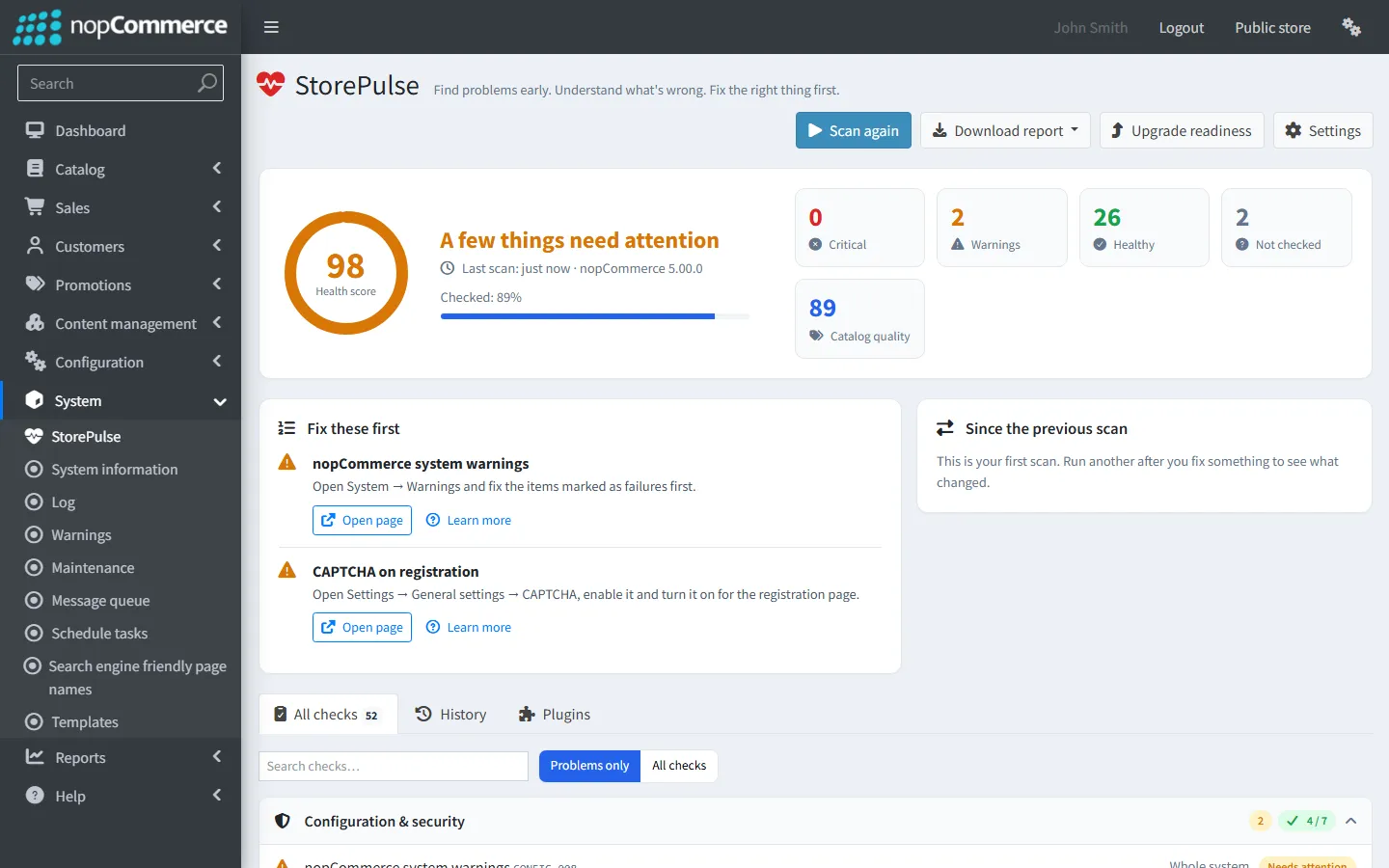
nopCommerce 5.00 admin
Detailed error pages
StorePulse check SEC-001
What StorePulse checks
Whether DisplayFullErrorStack is true in App_Data/appsettings.json.
Why it matters
With it on, error pages show the full exception, including file paths, library versions and sometimes SQL, to anyone who triggers an error.
Common causes
- It was turned on to debug a problem on the live server and never turned off.
How to fix it
- Open App_Data/appsettings.json on the server.
- In the CommonConfig section, set "DisplayFullErrorStack": false.
- Restart the application.
CAPTCHA on registration
StorePulse check SEC-002
What StorePulse checks
Whether CAPTCHA is enabled and shown on the registration page for the current store.
Why it matters
Without it, bots register fake accounts in bulk, which fills the customer table and can be used to send spam through your forms.
Common causes
- CAPTCHA needs Google reCAPTCHA keys, so it is often left for later and forgotten.
How to fix it
- Create reCAPTCHA keys for your domain in the Google reCAPTCHA admin console. Version 2 (checkbox) and version 3 are supported.
- Open Configuration → Settings → General settings and find the CAPTCHA section.
- Tick “CAPTCHA enabled”, choose the type, enter the public and private keys and tick “Show on registration page”.
- Consider the login, contact us, product review, forgot password and guest checkout pages too.
- Test registration in a private window.
Sample admin account
StorePulse check SEC-003
What StorePulse checks
Active administrators whose email is the installer’s sample address, admin@yourStore.com.
Why it matters
It is the first address attackers try in login attacks on nopCommerce stores.
Common causes
- The store was installed with the default email and it was never changed.
How to fix it
- Open Customers → Customers and search for admin@yourStore.com.
- Change the email to an address you control.
- Set a new, strong password and sign in again.
- Consider multi-factor authentication for every administrator.
Beyond the basics
A fuller review would also cover the following. StorePulse doesn’t check these yet.
- Keep nopCommerce on the latest patch of your version line, such as 4.90.8.
- Use multi-factor authentication for administrators (the Google Authenticator plugin ships with nopCommerce).
- Limit admin access by IP address at the web server or firewall where you can.
- Remove plugins you don’t use, and keep the rest updated.
- Back up the database and files, and test a restore.
Frequently asked questions
Where is DisplayFullErrorStack in nopCommerce?
In App_Data/appsettings.json, under CommonConfig. Change it on the server and restart the application.
Check your store with StorePulse
StorePulse is a free, read-only nopCommerce plugin from Cartenvo. It runs these checks and 49 more in a few seconds, explains each result and links back to the guide for it. It works on nopCommerce 4.80 and 4.90 and 5.00 and sends no data outside your server.
Rather have someone fix it for you? Email contact@cartenvo.com with what StorePulse found and we will tell you what it takes.
If this keeps happening, we can fix it
If you would rather have these settings checked for you, along with security patches and updates, ask about our ongoing security and maintenance support.