On this page
nopCommerce records errors from the store, its plugins and its scheduled tasks in one log. Left alone, it turns into a wall of messages that nobody reads. StorePulse looks at the last 24 hours and points out the patterns that matter. Here is what each check means.
nopCommerce 5.00 admin
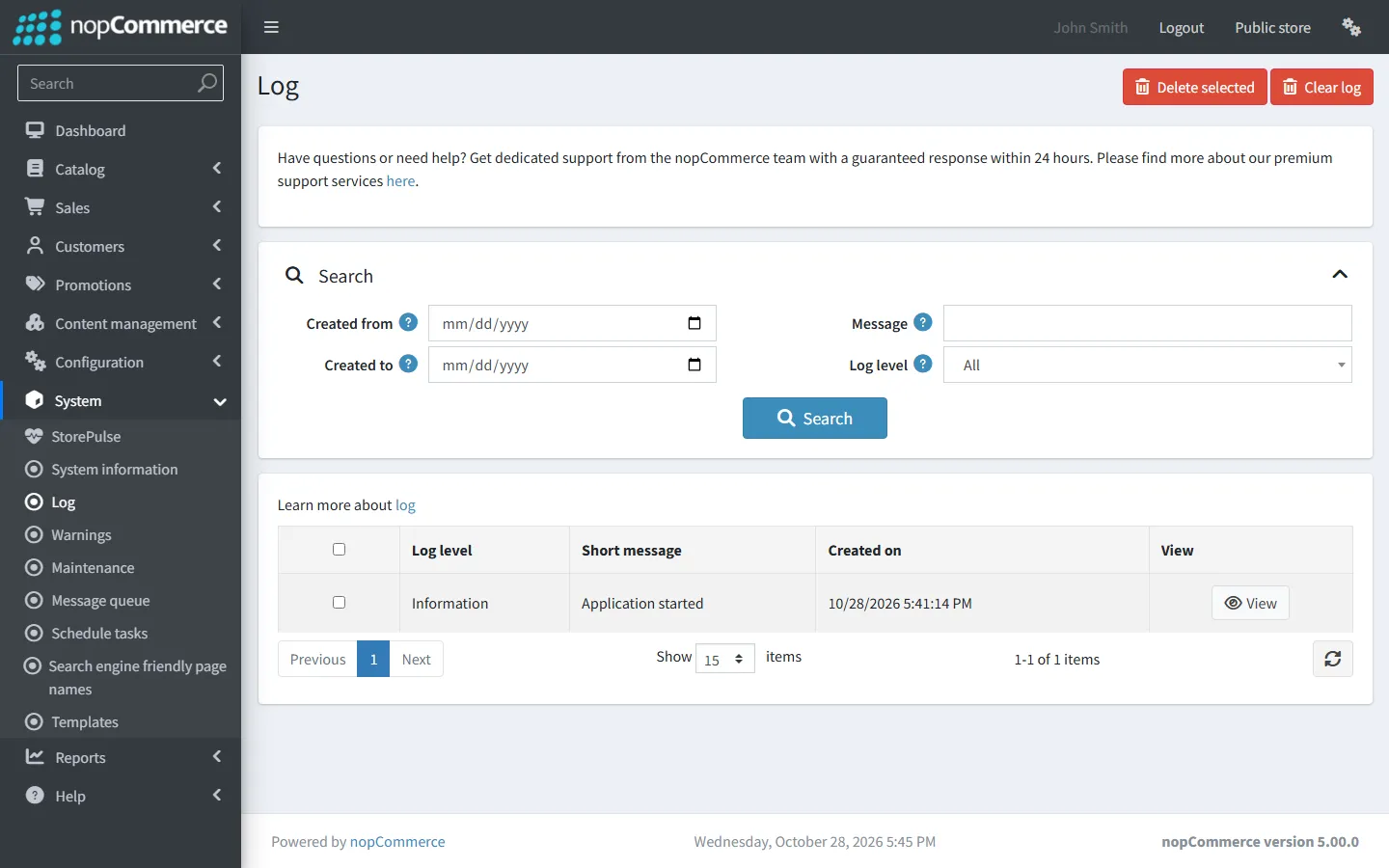
Fatal errors in the last 24 hours
StorePulse check LOG-001
What StorePulse checks
Log entries at Fatal level in the last 24 hours. Any Fatal entry is critical.
Why it matters
nopCommerce logs Fatal when something stops working entirely, such as the application failing to start or a database connection failing. Customers usually saw an error page.
Common causes
- A failed start after a deployment or configuration change.
- The database server was unavailable or ran out of space.
- A plugin threw an error during start-up.
How to fix it
- Open System → Log and set Log level to Fatal.
- Open the newest entry and read the full message. The first lines usually name the cause.
- Fix it, restart if needed, and check that no new Fatal entries appear.
Sudden increase in errors
StorePulse check LOG-002
What StorePulse checks
Errors in the last hour against the hour before. StorePulse warns when there are at least 10 errors and at least three times as many as the previous hour.
Why it matters
A spike almost always has a cause you can name: a deployment, a settings change, an outside service going down or a bot attack.
Common causes
- A new plugin, theme or code deployment.
- A payment, shipping, tax or exchange-rate service that is down or rejecting requests.
- Bots requesting pages that don’t exist, or attacking forms.
How to fix it
- Open System → Log and look at errors from the last hour.
- Ask what changed in the last few hours and roll it back if it’s the cause.
- If one message dominates, treat it as a repeating error (next check).
The same error repeating
StorePulse check LOG-003
What StorePulse checks
The newest error messages from the last 24 hours (200 by default), grouped by their text with numbers and ids removed. StorePulse warns when one message appears three times or more.
Why it matters
A message that repeats has a single cause. Fixing it once removes every copy and makes real new errors visible.
Common causes
- A broken page, widget or plugin that fails on every request.
- An integration that fails on every scheduled run.
- Bots requesting an old URL or a missing file.
How to fix it
- Open System → Log and search for the repeating message.
- Open one entry: the page URL and referrer show where it happens.
- Fix the cause, or add a redirect for an old URL.
Errors in the last 24 hours
StorePulse check LOG-005
What StorePulse checks
Log entries at Error level in the last 24 hours. Any error gives a warning.
Why it matters
A steady stream of errors means something is failing for some customers some of the time.
Common causes
- Plugin and theme bugs, failing integrations, missing pages and email delivery problems.
How to fix it
- Filter System → Log by Error and sort by date.
- Work from the most frequent message to the least.
- Once you’ve reviewed them, clear the log so new errors stand out.
How complete the logs are
StorePulse check LOG-006
What StorePulse checks
Nothing. It’s a reminder that StorePulse only sees what nopCommerce wrote to its log. It always shows “Couldn’t check” and doesn’t lower the score.
Why it matters
A quiet log doesn’t prove a quiet store. Errors that happen before the database is available, or entries removed by “Clear log”, aren’t visible.
Common causes
- Logs cleared by hand or by the “Clear log” task, and errors that happen before logging starts.
How to fix it
- No action needed. For start-up problems, also check the web server’s own logs (the Windows Event Log or your service logs on Linux).
nopCommerce log levels
Each entry has one of five levels. StorePulse counts Error and Fatal.
- Debug and Information: details written by plugins and tasks for troubleshooting.
- Warning: something unusual that didn’t stop the request.
- Error: a request or task failed.
- Fatal: the application or a core service stopped working.
Keep the log small enough to read
The “Clear log” scheduled task is disabled after installation. When you enable it, it deletes entries older than the value of the setting commonsettings.clearlogolderthandays (in Configuration → Settings → All settings). With the default value of 0 it deletes the whole log every time it runs, so set a number of days first.
See the database clean-up guide for SQL that deletes old entries in batches on very large tables.
Frequently asked questions
Where is the nopCommerce error log?
In the admin area under System → Log. It is stored in the Log table of the store database, not in a file.
Why is my nopCommerce log page so slow?
The log table has grown very large, often from one repeating error. Fix the repeating error, then delete old entries. On SQL Server, a filter by level and date still reads a lot of rows, because nopCommerce indexes the log by date only.
Check your store with StorePulse
StorePulse is a free, read-only nopCommerce plugin from Cartenvo. It runs these checks and 47 more in a few seconds, explains each result and links back to the guide for it. It works on nopCommerce 4.80 and 4.90 and 5.00 and sends no data outside your server.
Rather have someone fix it for you? Email contact@cartenvo.com with what StorePulse found and we will tell you what it takes.
If this keeps happening, we can fix it
If the same errors keep coming back, we can trace and fix them as part of ongoing nopCommerce maintenance.