On this page
Order confirmations, password resets and contact form messages all go through the same queue. When they stop, customers often notice before you do. StorePulse has five checks for the queue. This guide covers each one and the fixes that work in nopCommerce 4.80 and 4.90.
nopCommerce 5.00 admin
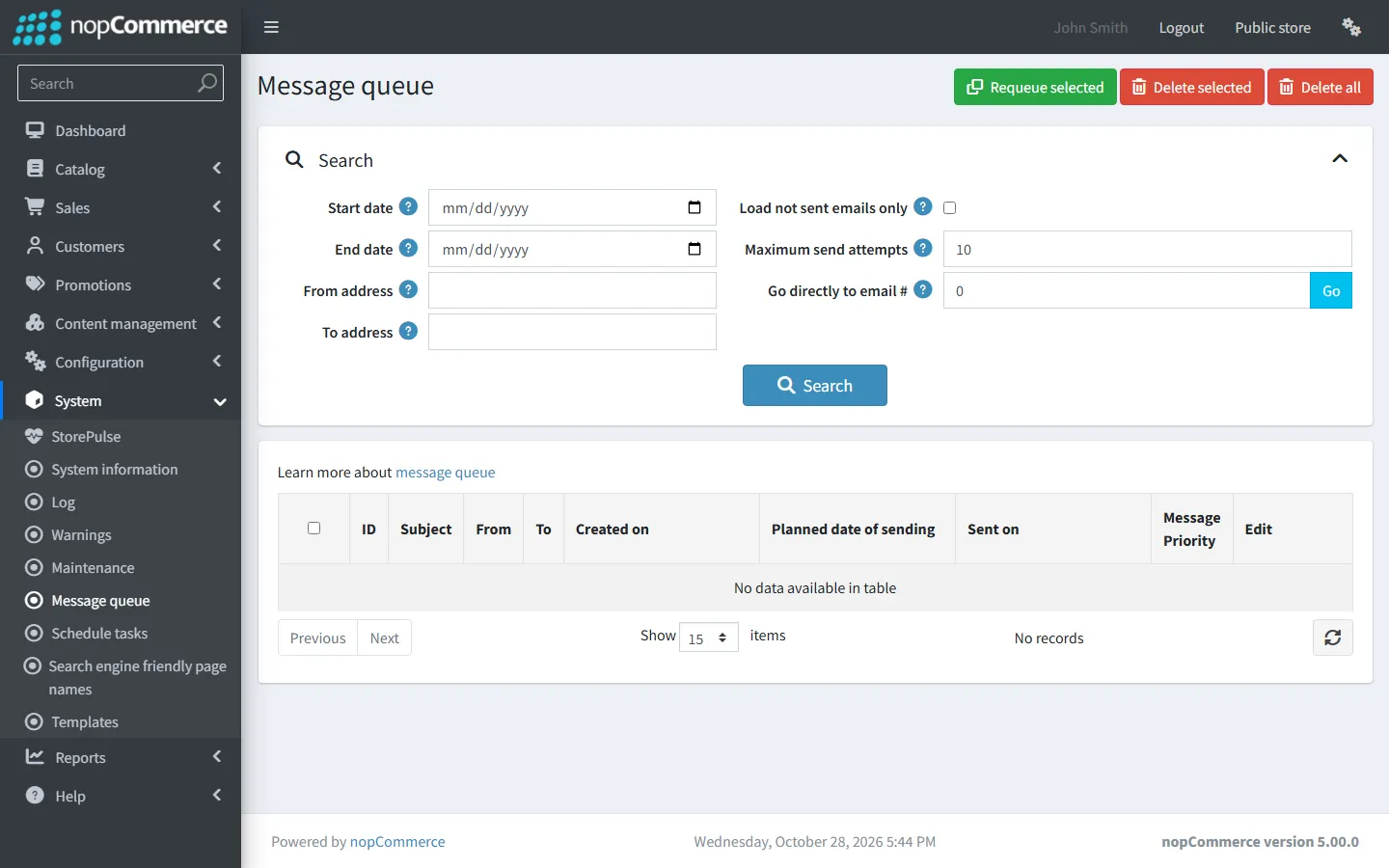
Emails waiting to be sent
StorePulse check EMAIL-001
What StorePulse checks
Unsent emails that are due now and have failed fewer than three times. StorePulse warns at 100 by default; you can change the limit in its settings.
Why it matters
Every waiting email is a customer who hasn’t received an order confirmation, a shipping update or a password reset.
Common causes
- The “Send emails” task is disabled, overdue or failing.
- The SMTP server rejects every message, so each one is retried until it reaches three attempts.
- A large batch, such as a newsletter or a bulk status change, is still going out. Each account sends a limited number of emails per run.
How to fix it
- Open System → Message queue and look at what’s waiting and how many attempts each email has.
- Open System → Schedule tasks and check that “Send emails” is enabled and its last start date is within the last few minutes.
- Open Configuration → Email accounts, edit the account, save it and click “Send test email”.
- Search System → Log for “Error sending email”. The message usually names the SMTP problem.
Oldest waiting email
StorePulse check EMAIL-002
What StorePulse checks
How long the oldest due email has been waiting. StorePulse warns after 30 minutes by default. Emails scheduled for later count from their send time, not from when they were created.
Why it matters
A long wait usually means sending has stopped entirely, rather than slowed down.
Common causes
- The task isn’t running, or every attempt fails.
- One account has a long queue and a low “Max number of emails” per run. New accounts default to 50 per run.
How to fix it
- Open System → Message queue and sort by created date.
- Check the “Send emails” task and the log, as above.
- If emails are going out but slowly, raise “Max number of emails” on the email account, within your mail provider’s limits.
Emails that failed 3 times
StorePulse check EMAIL-003
What StorePulse checks
Unsent emails with three or more failed attempts. nopCommerce stops trying after three failures, so these will never be sent on their own.
Why it matters
These are emails customers were promised and will never receive unless you act.
Common causes
- Wrong SMTP host, port, user name or password.
- A mismatch between the port and the SSL option (see below).
- The mail provider requires an app password or OAuth, or has blocked the sender address or reached its sending limit.
How to fix it
- Read the newest “Error sending email” entry in System → Log.
- Fix the account in Configuration → Email accounts and keep using “Send test email” until it arrives.
- Open each failed email in System → Message queue and click “Requeue” to send it again, or delete it if it no longer matters.
Email sending is stalled
StorePulse check EMAIL-004
What StorePulse checks
Whether emails are waiting while the “Send emails” task is missing, disabled or overdue. This is critical, because nothing else sends them.
Why it matters
With the task stopped, every new email joins the queue and none leave it.
Common causes
- Someone disabled “Send emails”, often on a staging copy that was later moved to production.
- The whole scheduler has stopped. See the scheduled tasks guide.
- A plugin replaced or removed the task.
How to fix it
- Open System → Schedule tasks, enable “Send emails” and click “Run now”.
- Refresh after a minute and check that the last start date updates on its own.
- If no task is updating, fix the scheduler first.
Emails linked to a deleted account
StorePulse check EMAIL-006
What StorePulse checks
Unsent emails whose email account no longer exists.
Why it matters
Each queued email keeps the account it was created with. When the “Send emails” task reaches emails whose account was deleted, it stops with an error, which can hold up other emails in the same run.
Common causes
- An email account was deleted while emails were still waiting for it, for example when replacing an old SMTP provider.
How to fix it
- Open System → Message queue, tick “Load not sent emails only” and find the emails with no account name.
- Delete them. The email account of a queued email can’t be changed in the admin area.
- If the emails matter, trigger them again from their source (for example resend the order confirmation from the order page).
- Watch the queue for a few minutes to confirm that other emails are sent.
SMTP port and “Enable SSL”: the most common mistake
In nopCommerce 4.80 and 4.90, “Enable SSL” means the connection is encrypted from the first byte. That is what port 465 expects. With the box unticked, nopCommerce connects normally and switches to TLS when the server offers it, which is what port 587 expects.
So use port 465 with “Enable SSL” ticked, or port 587 with it unticked. Port 587 with “Enable SSL” ticked fails with a connection or handshake error.
- Gmail and Google Workspace: smtp.gmail.com. Use an app password with the Login method, or choose Gmail OAuth2 as the authentication method.
- Microsoft 365: smtp.office365.com on port 587. Microsoft is retiring basic SMTP authentication, so use the Microsoft OAuth2 method where you can.
- Transactional providers (SendGrid, Mailgun, Amazon SES and others): use the SMTP host, port and credentials from the provider’s dashboard, and verify the sender domain there.
Check the queue from the database
If the Message queue page is slow on a large store, these read-only queries show the same numbers StorePulse uses.
SQL Server · waiting, failed and orphaned emails
SELECT
  SUM(CASE WHEN SentTries < 3 THEN 1 ELSE 0 END) AS waiting,
  SUM(CASE WHEN SentTries >= 3 THEN 1 ELSE 0 END) AS failed_three_times,
  SUM(CASE WHEN NOT EXISTS (SELECT 1 FROM EmailAccount a WHERE a.Id = q.EmailAccountId) THEN 1 ELSE 0 END) AS no_account
FROM QueuedEmail q
WHERE SentOnUtc IS NULL
  AND (DontSendBeforeDateUtc IS NULL OR DontSendBeforeDateUtc <= SYSUTCDATETIME());
PostgreSQL · waiting, failed and orphaned emails
SELECT
  COUNT(*) FILTER (WHERE "SentTries" < 3) AS waiting,
  COUNT(*) FILTER (WHERE "SentTries" >= 3) AS failed_three_times,
  COUNT(*) FILTER (WHERE NOT EXISTS (SELECT 1 FROM "EmailAccount" a WHERE a."Id" = q."EmailAccountId")) AS no_account
FROM "QueuedEmail" q
WHERE "SentOnUtc" IS NULL
  AND ("DontSendBeforeDateUtc" IS NULL OR "DontSendBeforeDateUtc" <= now() AT TIME ZONE 'utc');
Frequently asked questions
Why does nopCommerce say the email was sent but the customer didn’t get it?
A sent date in the queue means the SMTP server accepted the message. After that, delivery depends on the mail provider and the recipient’s spam filter. Check the provider’s logs and make sure SPF, DKIM and DMARC are set up for the sender domain.
How do I resend a failed email in nopCommerce?
Open it in System → Message queue and click “Requeue”. nopCommerce creates a new copy with the attempt count reset. Fix the email account first, or it will fail again.
How many emails does nopCommerce send per minute?
Each run of “Send emails” (every 60 seconds by default) sends up to the account’s “Max number of emails”, which is 50 for a new account. Raise it for stores that send a lot, within your provider’s limits.
Check your store with StorePulse
StorePulse is a free, read-only nopCommerce plugin from Cartenvo. It runs these checks and 47 more in a few seconds, explains each result and links back to the guide for it. It works on nopCommerce 4.80 and 4.90 and 5.00 and sends no data outside your server.
Rather have someone fix it for you? Email contact@cartenvo.com with what StorePulse found and we will tell you what it takes.
If this keeps happening, we can fix it
If emails keep getting stuck, we can trace the cause and fix it as part of our nopCommerce maintenance and performance service.